DIY PROJECTS

ProjectTable Pinball

ProjectTable Pinball turns your pool table into a vertical pinball cabinet experience using a projector and Joy-Cons. If you plan on using ProjecTable, you may as well take full advantage of the projector mounted above your pool table.

PROJECT VIDEO

ProjectTable Pinball Showcase

Watch the ProjectTable Pinball showcase and follow the setup guide below to recreate the build on your own table.

Video may take a few minutes to become publicly playable while YouTube finishes processing.

1. Windows and Projector Alignment

  • Connect your projector to your PC and power it on.
  • In Windows, open Display settings and select the projector display.
  • Set Display orientation to Portrait or Portrait flipped.
  • Position the projector so the playfield runs longways down the table toward the player.
  • If Pinball FX opens on the wrong display, press Windows + Shift + Right Arrow to move the game window to your projector display.

2. Install Steam First

  • Steam is the PC game launcher/store where you install and run Pinball FX.
  • If you do not already have Steam, download it from store.steampowered.com/about.
  • Install Steam, sign in (or create a free account), and let it fully update before continuing.

3. Pair and Combine Joy-Cons

  • Open Windows Bluetooth settings and click Add device if Bluetooth is not already on.
  • Press and hold the small Sync button on Joy-Con (L) until the LEDs start moving, then pair it as a Bluetooth device.
  • Repeat the same process for Joy-Con (R) so both controllers appear separately in Windows.
  • You should see both Joy-Cons listed in Windows Bluetooth devices before you open Steam.
  • Open Steam, then go to Settings > Controller.
  • Enable Steam Input for Nintendo Switch controllers.
  • In Advanced Settings, turn on Combine Joy-Con Pairs so Steam treats the two halves as one controller.
  • Completely close Steam from the system tray and reopen it so the new controller settings take effect.

4. Install Pinball FX and Force Steam Input

  • Open the Steam Store and search for Pinball FX.
  • Select Play Game and install it.
  • The base game is free-to-play with rotating tables.
  • In Steam Library, open Pinball FX.
  • Click Gear Icon > Properties > Controller.
  • Set Override for Pinball FX from Use default settings to Enable Steam Input.

5. Enable Cabinet Mode

  • Launch Pinball FX and open Settings or Cabinet Mode.
  • Turn Cabinet Mode on.
  • Set Orientation to 90 degrees or 270 degrees until upright on the projected table.
  • Minimize or hide Dot Matrix Window and Backglass layers for a clean table projection.

Original Prototype Build

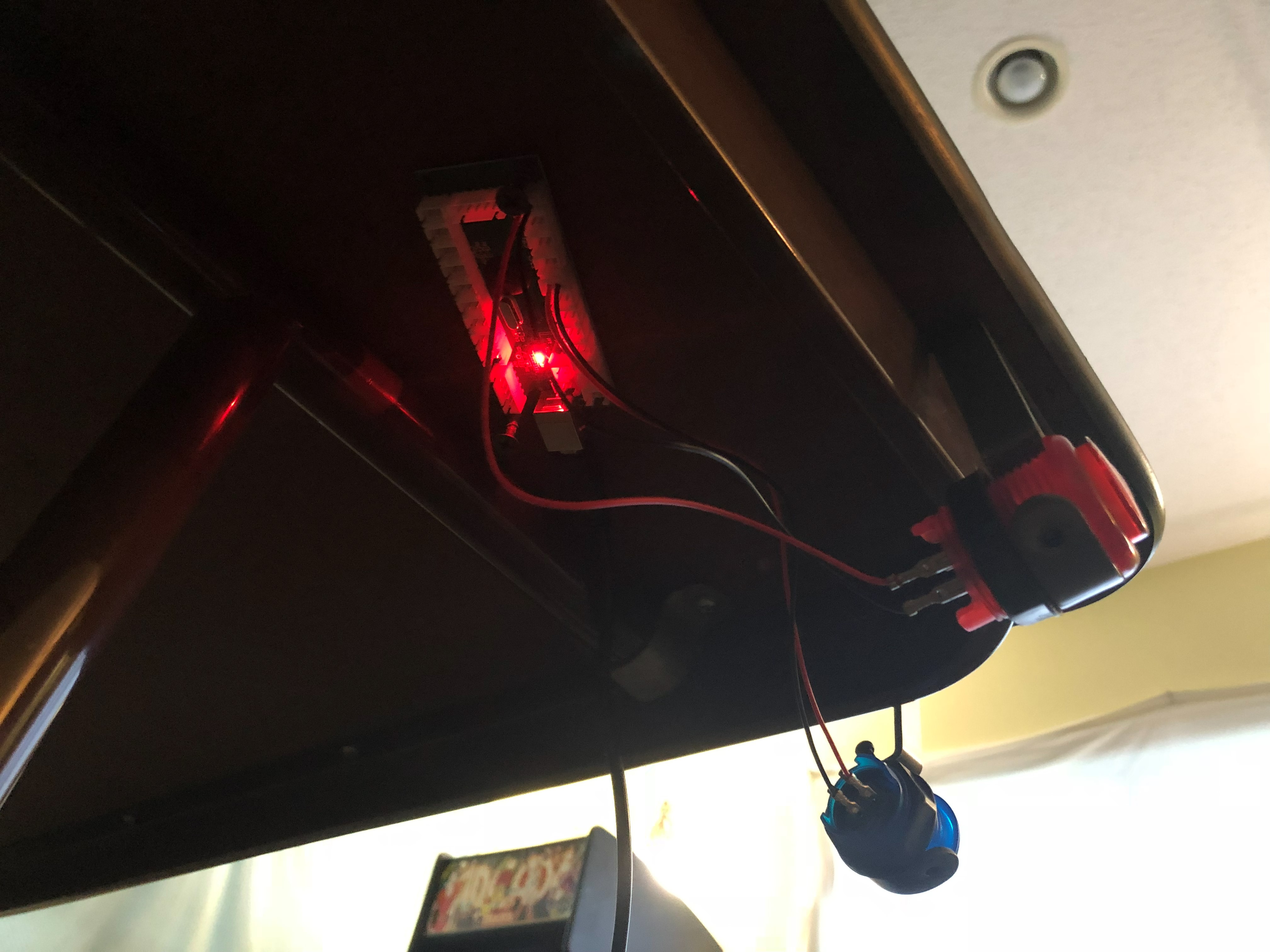
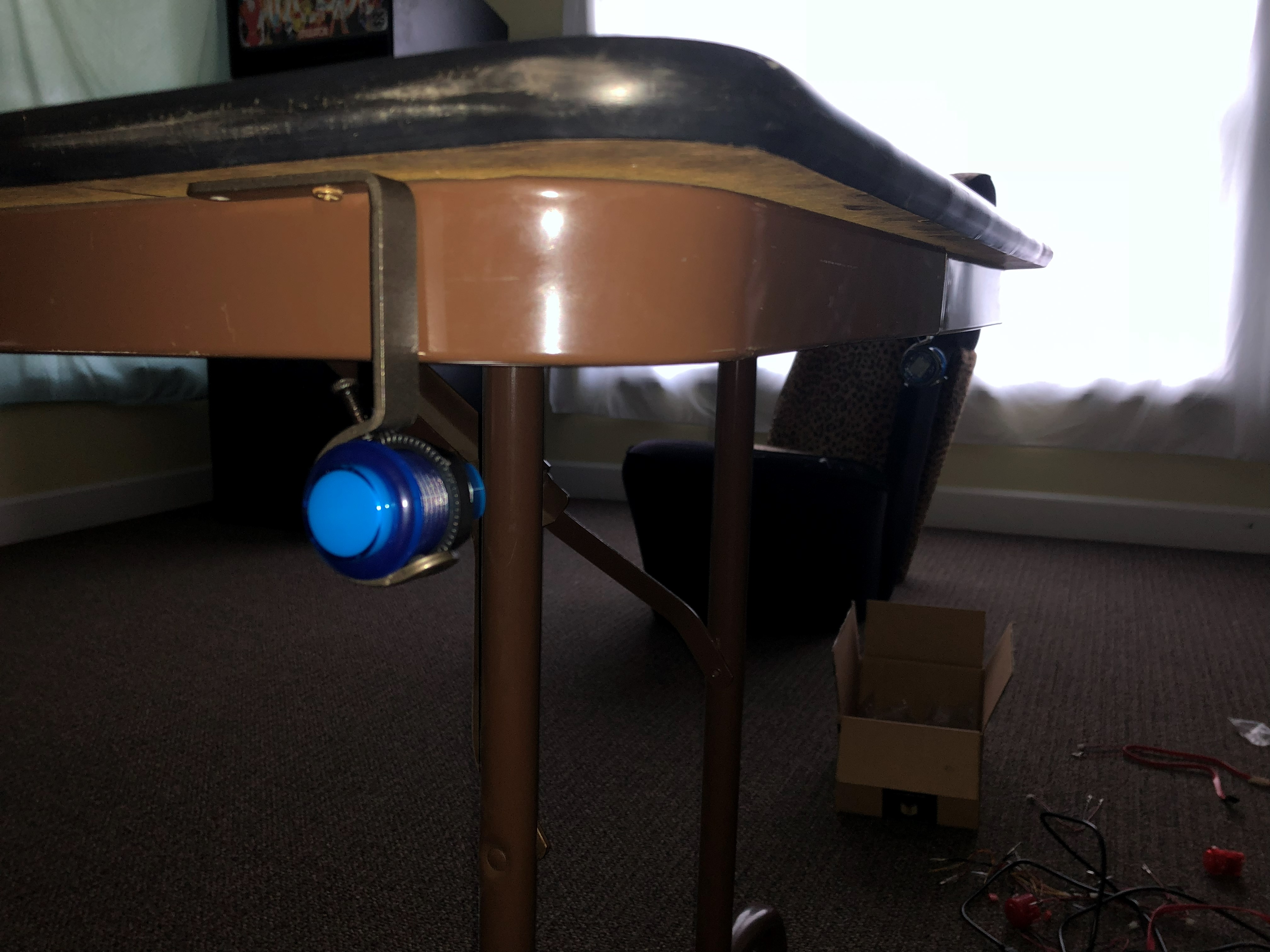
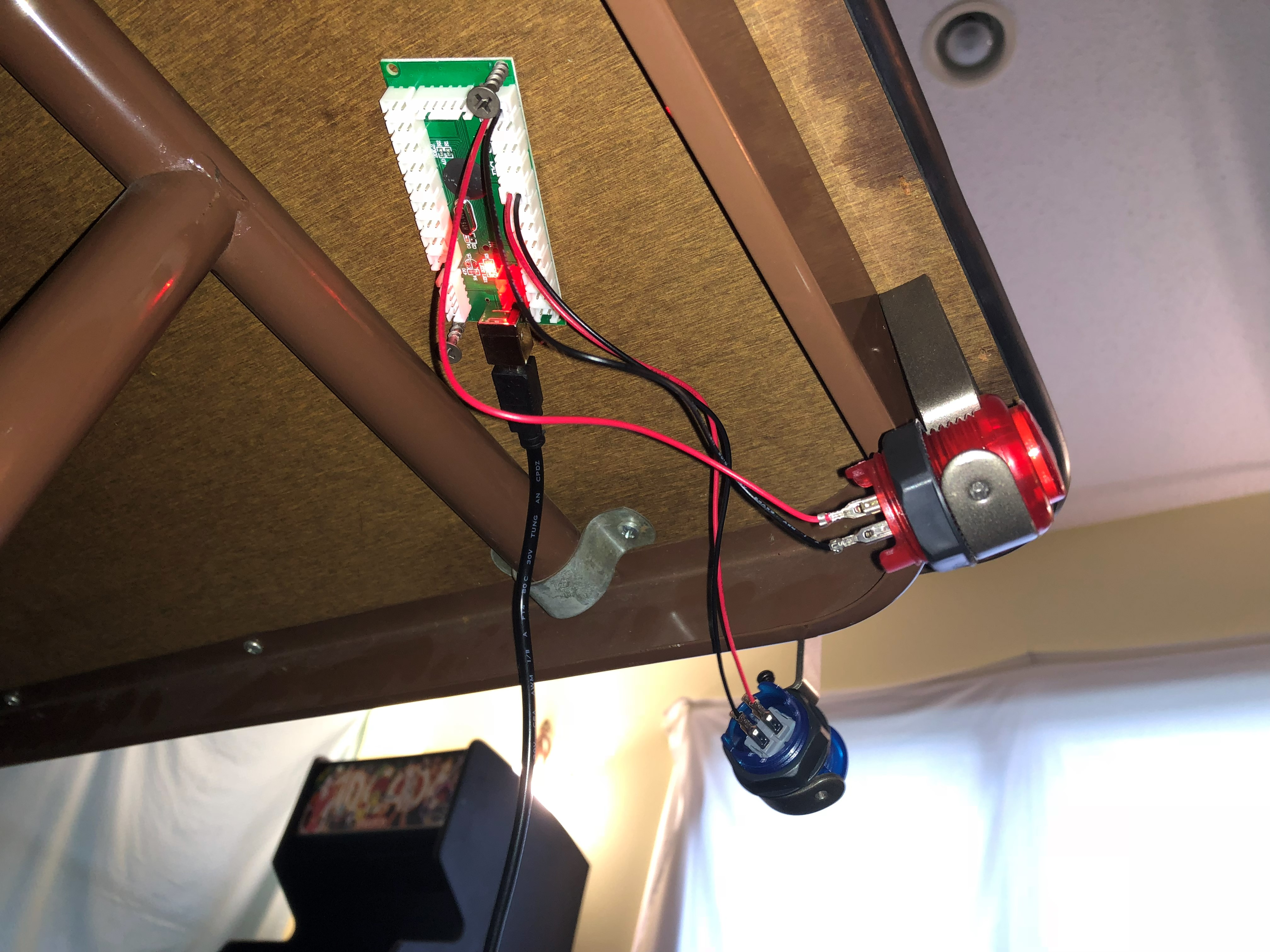
Before the current setup, this project was first tested on a foldable table with dedicated arcade buttons. That original build proved the core concept before moving to the current projector-focused table workflow.

  • Table surface started as a foldable prototype table
  • Physical arcade buttons were used for cabinet-style input
  • Concept validation happened before full pool-table integration

Original Setup Photos

Photos from the original foldable-table + arcade-button prototype build.

ORIGINAL PROTOTYPE

ProjectTable Pinball Original Prototype

This archived clip shows the original flat-table prototype using dedicated arcade button controls before the current projector-focused setup.

This prototype video may be briefly unavailable while YouTube finalizes processing.